This is Primer #1 in a series of seven that will calmly introduce you to the very basics of HyperText Mark-up Language. I suggest you take the Primers one at a time over seven days. By the end of the week, you’ll easily know enough to create your own HTML home page. No really. You will.
I say that because many people scoff at the notion that they can actually learn this new Internet format. I’m still amazed that the best-selling line of computer books calls its readers “Dummies.” And people seem to revel in that title. Some of the smartest people I know love to proclaim themselves “Dummies” regarding every aspect of computers. Strange. I think you’ll do a whole lot better at your next cocktail party by handing out your home page address rather than laughing about how dumb you are about the Internet.
H-T-M-L are initials that stand for HyperText Markup Language (computer people love initials and acronyms — you’ll be talking acronyms ASAP). Let me break it down for you:Hyper is the opposite of linear. It used to be that computer programs had to move in a linear fashion. This before this, this before this, and so on. HTML does not hold to that pattern and allows the person viewing the World Wide Web page to go anywhere, any time they want.Text is what you will use. Real, honest to goodness English letters.Mark up is what you will do. You will write in plain English and then mark up what you wrote. More to come on that in the next Primer.Language because they needed something that started with “L” to finish HTML and Hypertext Markup Louie didn’t flow correctly. Because it’s a language, really — but the language is plain English.
Beginning to Write
You will actually begin to write HTML starting with Primer #2. That’s tomorrow if you follow the seven-day plan this was written for. Here, I want to tell you how you will go about the process.
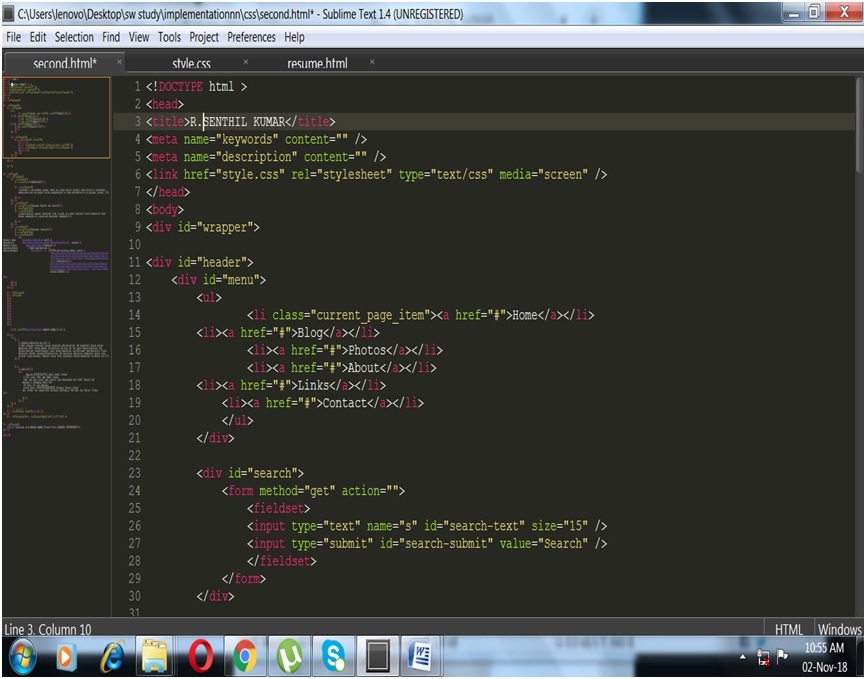
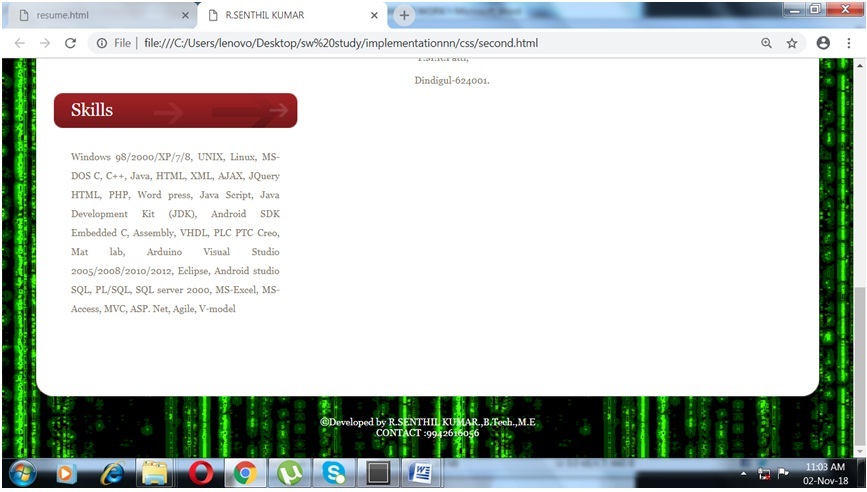
You will write the HTML document on the word processor, or Notepad, WordPad, or Simple Text. When you are finished creating the HTML document, you’ll then open the document in a browser, like Netscape Navigator. The browser will interpret the HTML commands for you and display the Web page.
Now, some people who are already schooled in HTML are going to jump up and down and yell that you should be using an HTML assistant program because it makes it easier. That’s true, but it also makes it harder to learn as the program does half the work for you. Take my word for it, use the word processor for a week, then go to the assistant if you still want to use one. You’ll be far better off for the effort. I have been writing HTML for six years and I still use Notepad for the bulk of my writing.
Let’s get into the programs you will use to write your HTML document. Keep this in mind: HTML documents must be text only. When you save an HTML document, you must save only the text, nothing else.
The reason I am pushing NotePad, WordPad, and Simple Text is that they save in text-only format without your doing any additional work. They just do it. But, if you’re like me, then you will want to start writing on a word processor, like WORD, or WordPerfect. Maybe you’re just more comfortable on it. If so, read this next part carefully.
The Word Processor
When you write to the word processor you will need to follow a few steps:
1. Write the page as you would any other document.
2. When you go to save the document (Here’s the trick), ALWAYS choose SAVE AS.
3. When the SAVE AS box pops up, you will need to save the page in a specific format. Look at the SAVE AS dialogue box when it pops up: Usually at the bottom, you find where you will be able to change the file format.
4. If you have a PC, save your document as ASCII TEXT DOS or just TEXT. Either one will work.
5. If you have a MAC, save your document as TEXT.
6. When I started writing HTML, I saved pages by assigning every Web page its own floppy disc. It just helped me keep it all straight, but if you want to save right to your hard drive, do it. I only offer the floppy disc premise as a suggestion.
Please remember: It is very important to choose SAVE AS EVERY time you save your document. If you don’t, the program won’t save as TEXT, but rather in its default format. In layman’s terms — use SAVE AS or screw up your document.
You see, when you save your document in WORD, or some other word processor format other than text, you are saving much more than just the letters on the page. You’re saving the margin settings, the tab settings, specific fonts, and a whole lot of other settings the page needs to be displayed correctly. You don’t want all of that. You just want the text.
NotePad, WordPad, and SimpleText already save in text-only format so if you use one of them as your word processor, you’ll get the correct format simply by saving your document.
How To Name Your Document
What you name your document is very important. You must first give your document a name and then add a suffix to it. That’s the way everything works in HTML. You give a name and then a suffix.
Follow this format to name your document:
1. Choose a name. Anything. If you have a PC not running Windows 95, you are limited to eight letters, however.
2. Add a suffix. For all HTML documents, you will add either “.htm” or “.html”.
(“.htm” for PCs running Windows 3.x and “.html” for MAC and Windows 95/98 Machines)
Example:
I am looking to name a document I just wrote on a PC running Windows 3.11 for workgroups. I want to name the document “fred”. Thus the document must be named “fred.htm”. If it was MAC or Windows 95/98 I would name it “fred.html”. Please notice the dot (period) before .htm and .html. And no quotation marks, I just put them in here to set the name apart.
Uhhhhhh…. Why Do I Do That?
Glad you asked. It’s a thing called “association.” It’s how computers tell different file types apart. “.html” tells the computer that this file is an HTML document. When we get into graphics, you’ll see a different suffix. All files used on the Web will follow the format of “name.suffix.” Always.
Okay, why .htm for PCs running Windows 3.x and .html for MAC and Windows 95/98?
Because that’s the way the operating systems are made (Windows 3.x, Windows 95/98, and MAC OS are all technically called operating systems). Windows 3.x only allows three letters after the dot. MAC OS and Windows 95/98 allow four, or more. Your browser allows for both suffixes. It acts upon .html and .htm in the same fashion.
Why do you keep harping on the fact that I must save in TEXT only?
You’re just full of questions! You see, HTML browsers can only read text. Look at your keyboard. See the letters and numbers and little signs like % and @ and *? There are 128 in all (read upper- and lowercase letters as two). That’s text. That’s what the browser reads. It simply doesn’t understand anything else.
If you’d like to test this theory, then go ahead and create an HTML document and save it in WORD. Then try and open it in your browser. Nothing will happen. Go ahead and try it. You won’t hurt anything.
Remember that if you are using Notepad, Wordpad, or Simple Text, the document will be saved as text with no extra prompting. Just choose SAVE.
Opening the Document in the Browser
Once you have your HTML document on the floppy disc or your hard drive, you’ll need to open it up in the browser. It’s easy enough. Since you’re using a browser to look at this Primer, follow along.
1. Under the FILE menu at the very top left of this screen, you’ll find OPEN, OPEN FILE, OPEN DOCUMENT, or words to that effect.
2. Click on it. Some browsers give you the dialogue box that allows you to find your document right away. Internet Explorer, and later versions of Netscape Navigator, require you to click on a BROWSE button or OPEN FILE button to get the dialogue box. When the dialogue box opens up, switch to the A:\ drive (or the floppy disc for MAC users) and open your document. If you saved the file to your hard drive, get it from there.
3. You might have to then click an OK button. The browser will do the rest.
 R.SENTHILKUMAR